
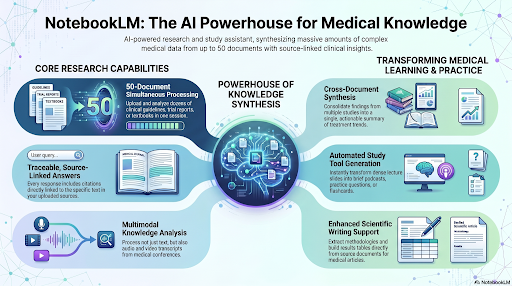

Infographic by NotebookLM
Introduction
NotebookLM began as an experimental Google Lab project in December 2023 but has grown exponentially due to its popularity. It is a free program that leverages several Gemini LLMs. You can share the results with colleagues as a restricted or public site. The free version of NotebookLM lets you add up to 50 sources per notebook. Step up to a paid plan, and the limit grows in stages, from 100 sources to 300 and all the way to 600 on the highest tier.
NotebookLM has evolved beyond just research and collaboration. Here are some specific use cases:
Hypothesis creation: brainstorm with a smart partner
Research gap analysis: upload literature and see where there are gaps
Knowledge repository or research library: keep all related documents in one place
Cognitive mirror: see if your understanding of issues and concepts matches AI
Improved organization with mind maps: let mind maps organize your thoughts
Contrarian opinions: seek out differing opinions
Presentation with slides, videos and podcasts: use multimedia NotebookLM to share your thoughts
Various reports: generate a summary report or blog in minutes
Create tables to compare anything: let NotebookLM do the heavy lifting
Simplify explanations: tell NotebookLM who your audience is and their grade level
Study aids for individuals or groups: leverage flashcards and quizzes for anyone's education
The pre-agentic notebookLM operates as a closed retrieval-augmented generation (RAG) system; it only answers questions using the specific documents you upload. For healthcare professionals, this "grounded" approach drastically reduces the risk of AI hallucinations, making it a reliable tool for managing dense medical knowledge. Your notebook does not have memory, but we will show you later in this module that combining a notebook with Gemini solves that problem.
Before starting you should configure your notebook by accessing this icon (Figure 1) in the upper right on the landing page and choosing your configuration style (Figure 2). There is a summary video of this section.


Figure 1: Upper right icon
Figure 2: Configure chat

Video 1 Introduction Summary
Sources Panel
1. The Sources Panel
The Feature: A massive 1-million-token context window that supports up to 50 sources per notebook (with up to 500,000 words per single source). It accepts PDFs, Google Docs/Slides, CSV files, audio files, Word documents, URLs, and EPUB files. You can upload from the web or Google Drive, paste in text, or upload files from your computer. You can perform a web search as well as quick or deep research. A new feature added in May 2026 is the ability to organize and label your resources by selecting the icon identified in Figure 3 below. This function will organize your resources into separate folders.


Healthcare Impact: You can upload dozens of disparate files—such as clinical practice guidelines, multi-page clinical trial reports, or local hospital formulary updates—into a single workspace. The AI treats them as a singular, cohesive knowledge base. See Figure 4
Summary: Once you upload all of your documents, you get an automatic summary in the mid panel. Be sure to “Save to note” for future reference.
Figure 3: File organizer icon


Figure 4: Add sources option
2. Source-Based Q&A with Inline Citations
The Feature: A conversational chat interface that answers questions only using your uploaded text. Every generated response includes clickable, numbered inline citations that anchor directly to the exact paragraph in your source documents. Focusing only on knowledge from sources means less hallucinations. See Figure 5
Healthcare Impact: Absolute verification. If you ask, "What are the safety recommendations for gadolinium-based contrast agents in patients with impaired renal function?" you can click the citation to instantly verify the exact guideline text.
Figure 5: Save summary as a note and ask questions in the query window
3. Multimodal Audio & Video Transcripts Input
The Feature: The ability to upload audio and video files or paste YouTube links directly as a source. NotebookLM automatically transcribes the media and makes it fully searchable and interactive.
Healthcare Impact: Ideal for continuous medical education (CME) or research. You can drop in recorded medical webinars, conference presentations, or lecture transcripts to quickly query complex discussions without skimming hours of footage. See Figure 6. There is also a video summary of the sources section below
Figure 6: Multimodal options


Video 2: Sources panel summary.
Studio Panel
Below is a screenshot of the Studio Panel located on the right side of the main screen. Always click on the chevron (>) first to select your options. If you just click on the panel option, you will get the default features. See Figure 7


Figure 7: Studio Panel Options
1. Table Creation
The Feature: Located in the Studio panel, this tool automatically scans across all uploaded sources to extract variables, statistics, and endpoints, structuring them into a clean, comparative table.
Healthcare Impact: Accelerates literature reviews and meta-analyses. If you upload 10 different studies on a specific diagnostic imaging protocol, this tool can synthesize their sensitivities, specificities, and sample sizes into a single comparison chart in seconds. In Figure 8 below, I asked Gemini to generate a table comparing NotebookLM with alternatives. The table can be exported to Google Sheets and then downloaded as a PDF file.


Figure 8: Table creation
2. Slide Decks
The Feature: This feature allows you to transform text sources into slide decks.
Healthcare Impact: This feature is a quick way to transfer your thoughts to a visual representation for others to see.
First, select the chevron and look at your options before you generate the slide deck. See Figure 9. I chose “Presenter Slides” and “short.” I would advise adding a lot of detail to the presentation prompt and to every prompt. For example, list the number of slides you want, the target audience, the color scheme, and the topics you want covered at a minimum.


Figure 9: Slide deck
Once your slides are generated, you can revise them, share them, download them as a PDF or PPTX, and do a slideshow. The slides generated are images. You do have an option to revise using AI, but the result is not self-editable. This link will take you to the slides I created.
3. Podcasts
The Feature: First, click on the chevron to select the options you want before generating the podcast. See Figure 10 below. I chose a brief podcast that discusses how to use podcasts in health care. Consider choosing “debate” if you want to hear both sides of an issue.
Healthcare Impact: This podcast is an example of microlearning where you could listen to a 10-minute podcast or a recent medical article you upload to NotebookLM.
You can download or share the results. Here is the link to the podcast I created.


Figure 10:: Podcast options
4. Video Overviews
The Feature: When you select the chevron, you will see multiple options. The cinematic option is currently only available to Ultra subscribers. Choose between “Explainer” and “Brief.” Provide details on what you want covered and choose a visual style.
See Figure 11
Healthcare Impact: Video overviews can discuss medical topics, and this approach is valuable to those who consider themselves “visual learners.


Figure 11: Video overview options
The results can be downloaded or shared. Here is the link to the video produced.
5. Infographics
The Feature: The first image on this page before the introduction section is an infographic created by NotebookLM.
Healthcare Impact: Infographics could be created to summarize or explain a medical topic. They can also be used as graphics for a slide deck.
6. Mind Maps
The Feature: The mind map organizes disparate resources into a cohesive outline. Each arm can be expanded/exploded into more detail. Results can be downloaded. See Figure 12.


Figure 12. Infographic
7. Flashcards
The Feature: There are options to design the flashcards as seen in Figure 13. Figure 14 displays an example of a flashcard question. On the back is the answer and an explanation.
Healthcare Impact: This learning technique is valuable for learning complex topics.


Figure 14: Flashcard example
Figure 13: Flashcard options
8. Quizzes
The Feature: Create multiple-choice or true/false questions
Healthcare Impact: Medical students could use this approach as another study method. See Figure 15 for the quiz options and Figure 16 for an example of an MCQ.


Figure 15: Quiz options


Figure 16: Multiple choice quiz
9. Reports
The Feature: Eight report types are offered. I chose “Technology Comparison Guide.”
Healthcare Impact: Any healthcare student could use study guides. A briefing doc could be created prior to any presentation. See Figures 17 and 18. There is also a video summary of this section below


Figure 17: Report types
Figure 18: A comparative technology report


Video 3: Studio panel summary.
The Middle Panel
As mentioned in the introduction, NotebookLM is an outstanding library that you can mine. It is limited by the fact that it has no memory and you can’t expand or expound beyond the documents/images/videos you uploaded as sources. That all changed with the following additions.
Integrations
In April 2026, Google added another option. When you open Gemini, you have the option to add a notebook. You can scroll to find the NotebookLM you want for your library, and Gemini will act as the subject matter expert, remembering your questions and mining the NotebookLM as well as searching outside of it. Figure 19 shows how you access your NotebookLM while using Gemini. Furthermore, look at the left menu using Gemini, and you will see “All notebooks.”


Figure 19: Gemini linked to NotebookLM
In June 2026 Google's agentic AI Antigravity platform, as well as Gemini 3.5 was integrated with NotebookLM. It was initially rolled out only to Ultra subscribers but is now being rolled out to Pro subscribers. This is a monumental change for NotebookLM, as it transforms the platform from a static, memoryless repository into one with a brain, memory, and multiple capabilities. This transformation turns NotebookLM from a smart document reader into a full-fledged agentic research tool powered by Gemini 3.5 and Antigravity; they tag-team new tasks. Each notebook is now equipped with its own secure cloud computer featuring over 100 curated software skills. This allows AI to write and execute code against your sources, clean data, run advanced statistical analyses, and generate accurate calculations. You can now prompt AI to generate editable Microsoft PowerPoint decks (PPTX), functional Excel spreadsheets (XLSX), Word documents (DOCX), PDFs, vector charts (SVG), and even images powered by Nano Banana. Below is a table comparison of Gemini vs Antigravity and their roles in NotebookLM.

Summarize recent information: Agentic Notebooks can scrape the Internet for the most recent news or a literature search. I asked it to find and discuss the most recent enhancements to NotebookLM. It found 10 articles, which I imported and then summarized.
Multimodal presentations: After researching a topic, it created various presentations. Below is a video that the agentic NotebookLM created. After retrieving and summarizing resources, I asked it to generate a slide deck and a video overview.
Agentic NotebookLM Use Cases
Spreadsheet evaluation: A colleague sent me a complex dataset of patients treated with stereotactic radiation using CyberKnife technology. There were about 120 subjects and 75 columns. I did not have a data dictionary, so I could not advise the model any further. I asked it to determine the optimal patient selection criteria and after about 10 minutes it generated a two-page report with multiple recommendations
The New Clinical Guideline
A. Gemini (The Brain): You upload a new 100-page cardiology guideline. You ask, "Summarize the changes in beta-blocker recommendations for patients over 75." Gemini reads the text and explains the nuances.
B. Anti-gravity (The Calculator): You upload the appendices of that guideline containing tables of drug dosages and hazard ratios. You ask: "Visualize the risk reduction of Drug A vs Drug B as a bar chart." Anti-gravity writes code to extract the numbers and generates a .png image of the chart.
Departmental Staffing Review
A. Gemini (The Brain): You ask, "Based on these meeting minutes, what are the top three complaints from the nursing staff about the new shift schedule?" Gemini synthesizes the emotional and qualitative feedback.
B. Anti-gravity (The Calculator): You upload the anonymized shift log spreadsheet. You ask, "Calculate the average overtime hours per nurse per week and graph the trend over the last 6 months." Anti-gravity crunches the raw numbers and outputs the trend line.


The following is the usual workflow:
Begin with a blank notebook
Research a new topic with a prompt in the search window
Wait while Gemini 3.5 searches the Internet and literature and begins loading references (sources). Approve and Import the sources. You can also import your own resources along with those found by Gemini.
Query the resources further for more analyses
Convert this information into a. Mind map b. Infographic c. Podcast d. Slides or e. Video overview using Antigravity
Video 4: New additions to NotebookLM
Limits and cautions
Because an agentic notebook is not RAG-based, it may produce hallucinations.
Agentic notebooks are likely to be more expensive and consume more tokens. As with all AI-enabled applications and software, human scrutiny is important
Not for PHI. NotebookLM is not a HIPAA-compliant environment. Do not upload identifiable patient data unless your institution has provisioned an enterprise plan with a signed BAA.
Garbage in, garbage out. Answers reflect the quality of your sources. Curate deliberately—a notebook with three current guidelines beats one with thirty random blog posts.
Not real-time. Sources are static snapshots. Set a calendar reminder to refresh notebooks when major updates land.
Still verify the citation. Citations point to the source page, but the summary above is still an AI summary. Click through whenever the answer drives a clinical decision.
Hands-on exercise
Open notebooklm.google.com and click on “Create new notebook.” The following instructions are for non-agentic AI. If you have access to agentic NotebookLM (Antigravity), follow the workflow noted in the prior section.
Upload 2–3 sources on a topic you care about this week (e.g., the most recent guideline + one review article).
Ask three questions you would normally ask Google. Click every citation to verify the source.
In the Studio Panel, generate an audio overview in the “Brief” format. Listen to it during your commute home.
Save one answer as a note inside the notebook. Tomorrow, add a new source and re-ask the same question—watch the answer evolve.
NotebookLM Resources
Master NotebookLM in 11 Minutes: A high-level overview detailing how to leverage NotebookLM's workspace for rapid learning and research synthesis.
The Ultimate Guide to Google NotebookLM: A practical walkthrough covering the full suite of creation tools, including flashcards, quizzes, and audio overviews.
Top 10 NotebookLM Tips and Tricks: Advanced workflow strategies showcasing how to pull in web sources, use deep research, and utilize video overview tools.
Give Me 13 Minutes. I'll Teach You 80% of NotebookLM: An excellent introductory primer on building knowledge bases and using citations to verify source data.
Official Google Resources
Discover Sources & Add Content: The official Google Help article on finding and integrating curated web sources directly into your notebooks.
Generate Video Overviews: Technical documentation outlining how to format and generate video overviews.
Beginner Tips & Audio Overviews: Official Google Blog best practices on transforming your materials into conversational podcast-style audio summaries.
Expert Articles & Workflows
Wonder Tools: NotebookLM The Complete Guide: A comprehensive breakdown by industry experts covering practical uses, from creating timelines to generating audio guides.
Coursera: Using NotebookLM Effectively: An actionable guide to utilizing audio overviews for deep review and avoiding context pitfalls.
The Ultimate NotebookLM Toolkit: prompts and workflow. Pay what you can.
Tips
One notebook = one topic. Don’t mix unrelated subjects.
Curate, don’t dump. 3–10 high-quality sources beat 100 mediocre ones.
Trust the citation, not the summary. Click through for anything that affects a patient.
Reuse across formats. Curate once and then export audio, a mind map, a briefing, a video, and a study guide.